Choosing the Right Font Pairing for Your Website
Understanding how to combine typefaces creates visual interest while maintaining readability and hierarchy across your design.
Read ArticleMaking text readable on mobile doesn’t mean using smaller fonts everywhere. Learn fluid typography techniques that maintain readability and hierarchy at any screen size.

Here’s the thing about responsive design—most websites still treat typography like it’s 2015. They set one font size for mobile, another for desktop, and call it a day. But that’s not responsive typography. That’s just resizing.
Responsive typography means your text actually adapts fluidly across every screen size. It’s not jumping between fixed sizes at breakpoints. Instead, your fonts scale smoothly based on viewport width, maintaining perfect readability whether someone’s viewing your site on a 320px phone or a 2560px ultrawide monitor.
The difference? Users get consistent visual hierarchy. Your design breathes properly. Text doesn’t become cramped at weird sizes. And you’re not writing dozens of media queries just to make headlines look right.

If you’re still writing media queries for every heading size, it’s time to learn about clamp(). This CSS function does the heavy lifting for you.
The syntax looks like this:
font-size: clamp(minimum, preferred, maximum);
Here’s what that means in practice. You set a minimum size (say, 1.5rem for an h2), a preferred size that scales with viewport width (4vw + 0.5rem), and a maximum size (2.75rem so it doesn’t get absurd on ultra-wide screens). The browser does the math and picks the value in the middle—it’s never too small, never too large.
One h2 rule replaces twelve media queries. You’ll spend less time debugging viewport-specific weirdness and more time actually designing.

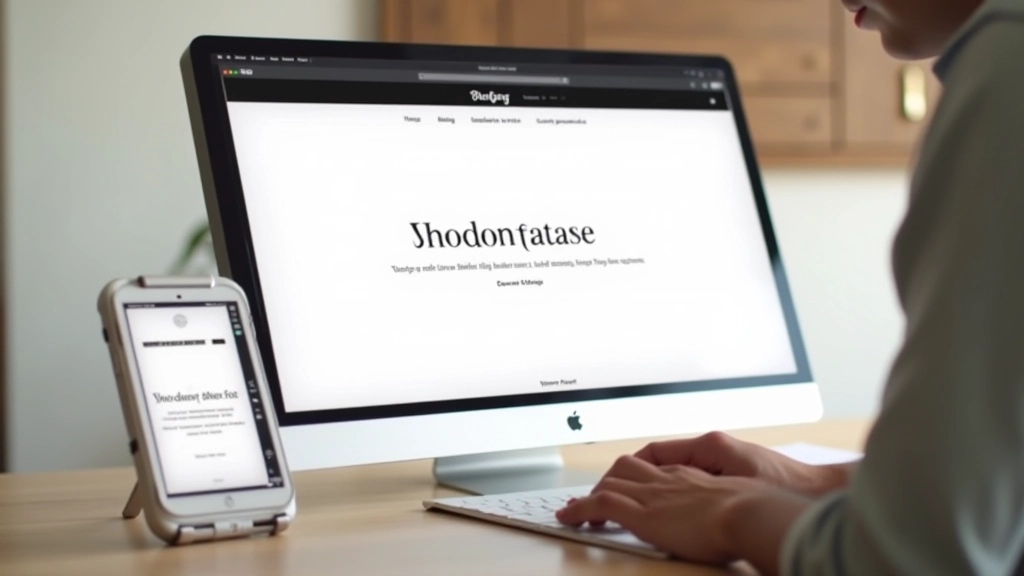
Let’s get specific. You’re building a minimalist site and want typography that works everywhere. Here’s what actually works in production:
These aren’t random numbers. They’re tested across actual devices. An h1 never gets smaller than 28px (readable even on old phones) or larger than 56px (doesn’t overwhelm on 4K displays). Body text stays between 14px and 18px—the goldilocks zone for readability.
The vw component is what makes it fluid. On a 375px phone, 5vw is about 19px. On a 1440px desktop, it’s 72px. Your font scales proportionally with the viewport—no jumps, no weird breakpoint moments.
Responsive typography isn’t just about making text readable. It’s about keeping your visual hierarchy intact. On mobile, an h2 can’t look like body text. On desktop, an h1 can’t look the same size as an h2.
That’s why the preferred value in clamp() matters. When you use 5vw for h1 and 4vw for h2, they maintain their size relationship across all viewports. The h1 is always proportionally larger. Users always know what’s a heading and what’s body copy, whether they’re on a 320px phone or a 2560px monitor.
You also want to think about line-height. A body paragraph at 0.875rem on mobile needs line-height: 1.6 or 1.7 for readability. At 1.125rem on desktop, line-height: 1.5 works fine. You can also use clamp() for line-height: clamp(1.4, 0.5vw + 1.2, 1.6). It’s the same principle—fluid, never too tight, never too loose.
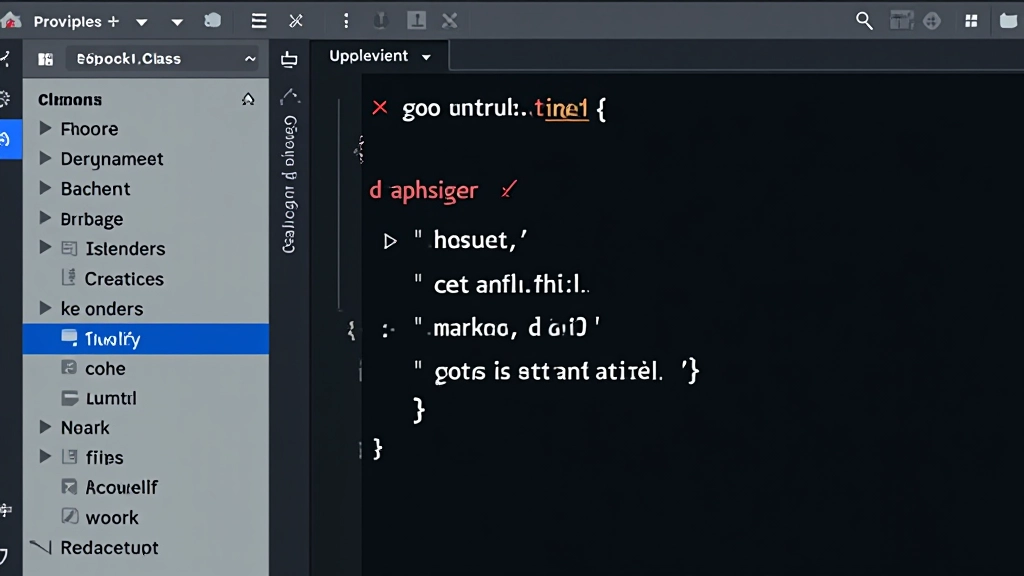
Theory is great. But you need to actually test your typography on real devices. Don’t just resize your browser window—that’s not how users experience your site.
Open DevTools. Use responsive design mode. Test at 320px (smallest phone), 768px (tablet), and 1440px (typical desktop). Your headings should look proportional. Text should never feel cramped. Lines shouldn’t be so long they’re hard to scan (max 65-75 characters per line is ideal).
You’ll also want to test on actual devices if you can. A phone in your hand feels different from a browser window. You’ll catch readability issues you might miss on screen. Spend time with your typography at each size. If something feels off—too small, too tight, too loose—adjust your clamp() values and test again.
Responsive typography isn’t just a technical feature. It’s a philosophy. Instead of writing breakpoints for every possible screen size, you build a system that adapts intelligently. Your fonts scale smoothly. Your hierarchy stays consistent. Your text remains readable from the smallest phone to the largest desktop.
Start with clamp(). Test on real devices. Refine your numbers based on what actually looks good. You’ll spend less time writing CSS and more time designing something people actually enjoy reading. That’s the point.
Responsive typography isn’t about making text smaller on mobile—it’s about making text work everywhere. Use clamp(), test thoroughly, and trust the system.
This article provides educational information about responsive typography techniques and CSS best practices. The clamp() function values and recommendations are based on industry standards and practical testing. Results may vary depending on your specific design needs, content, and target audience. Browser support for clamp() is excellent in modern browsers (Chrome 79+, Firefox 75+, Safari 13.1+). Always test your implementation across your target devices and viewports to ensure optimal readability and user experience.